Spring Boot S3 Presigned Url Upload/Download File
What is presigned url and why should we use?

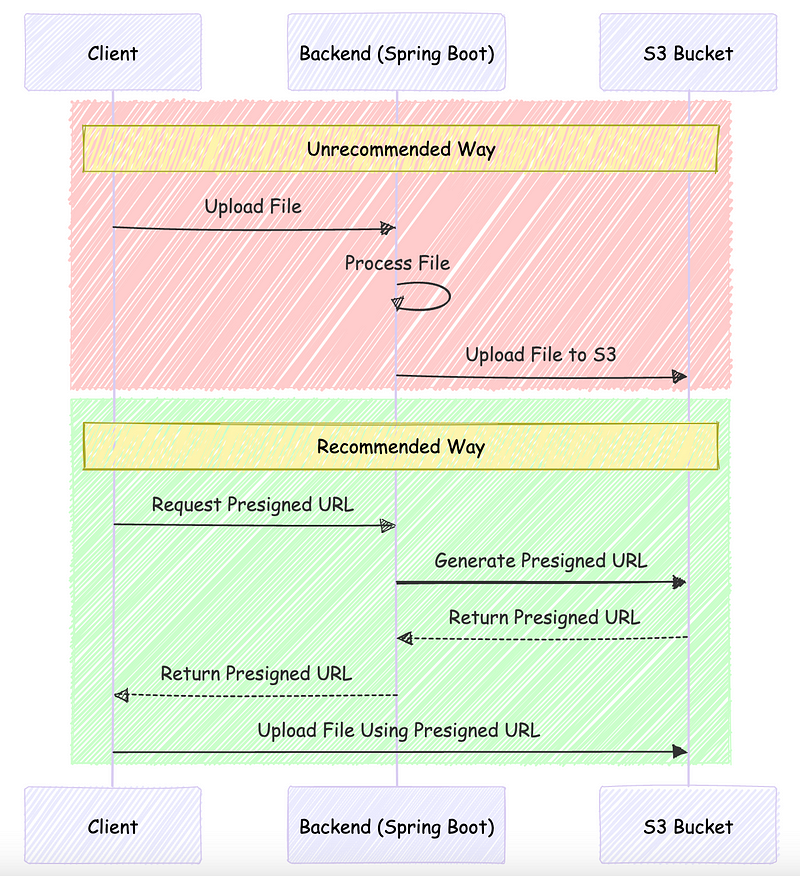
Presigned URLs let us upload and download files without going through our service directly. This helps save resources and reduces the load on our systems.
In this article I will show you traditional way to upload/download files to s3 bucket using spring boot and more effective way using presigned urls.
# an example of presigned url
https://myawesomeuniquebucket.s3.amazonaws.com
/1729958037118_test.pdf?X-Amz-Algorithm=AWS4-HMAC-SHA256
&X-Amz-Date=20241026T155357Z&X-Amz-SignedHeaders=host
&X-Amz-Credential=AKIAYMCOFGJVFLVO2AMY%2F20241026%2Fus-east-1%2Fs3%2Faws4_request
&X-Amz-Expires=3600&X-Amz-Signature=b5d50eee26d24667ba9d07095965f7e12be20008488418e3cffc4f58e3590a3f
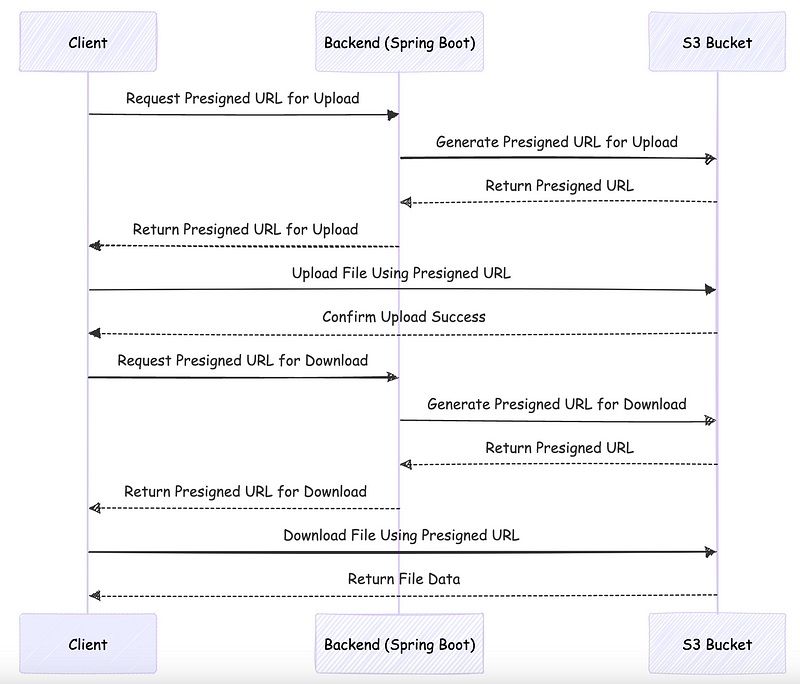
upload/download using presigned url
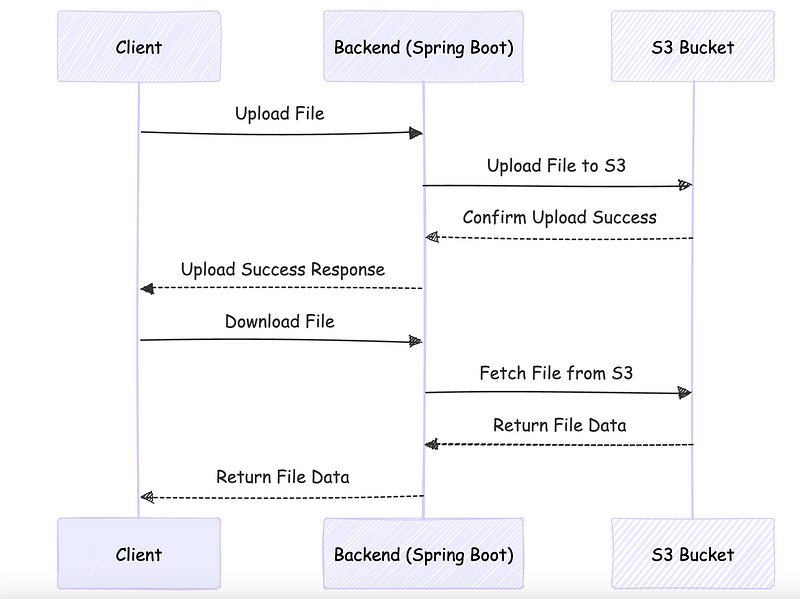
traditional way
Create bucket and user in AWS
First let’s create our aws bucket and user for acces from our application.
- Create a bucket
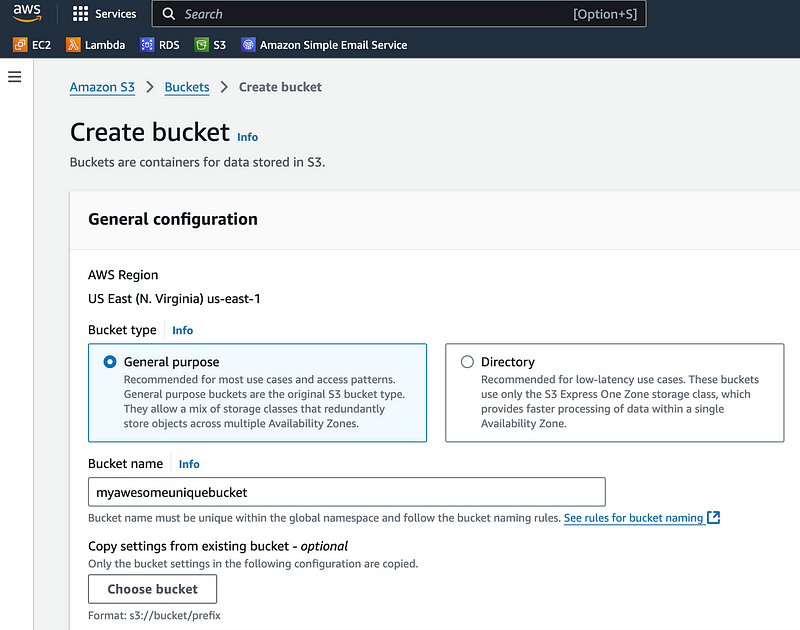
write an unique name
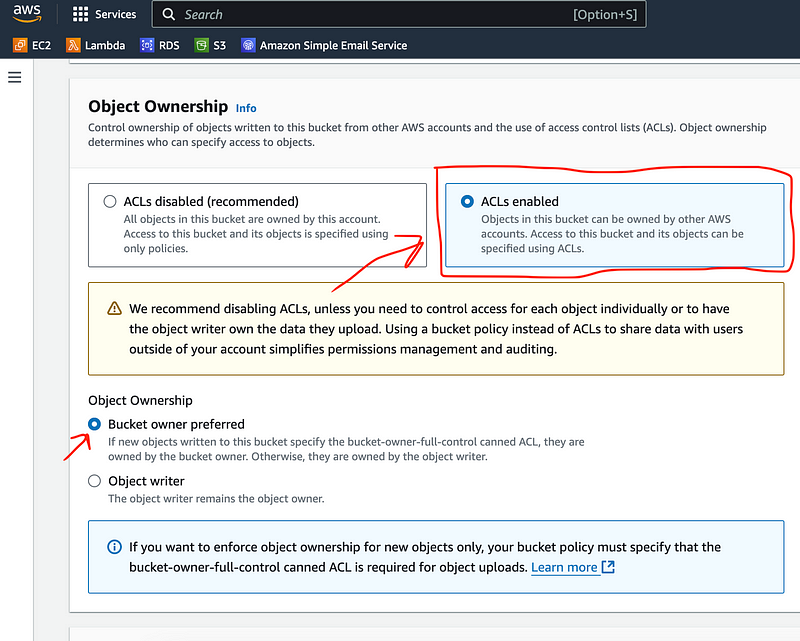
select ACLs enabled, because we want to upload public and private files
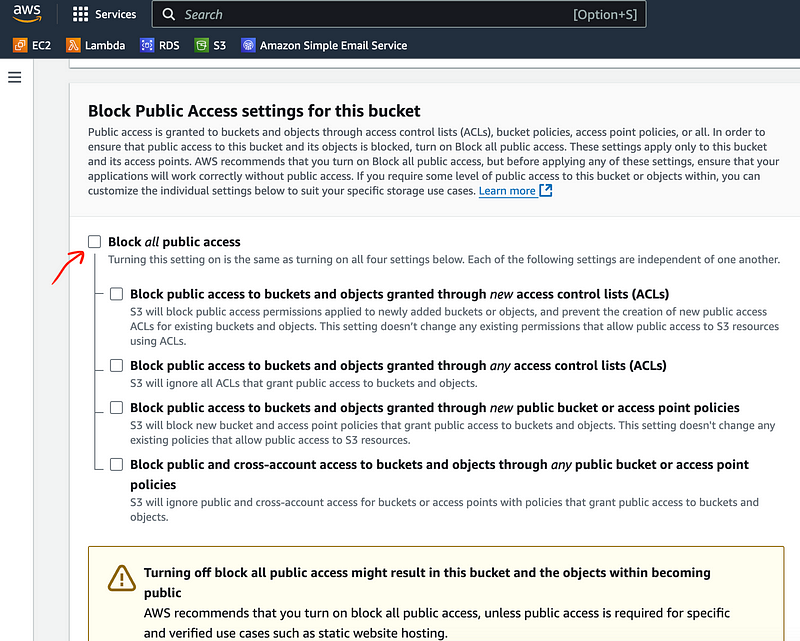
untick block all public access
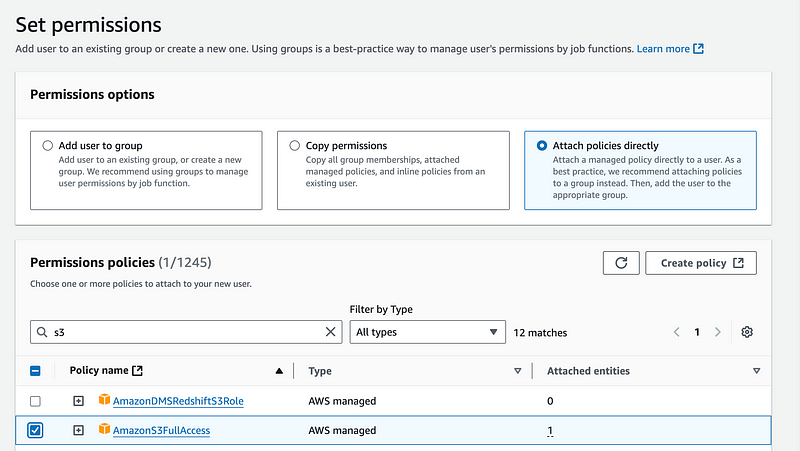
- Create a user
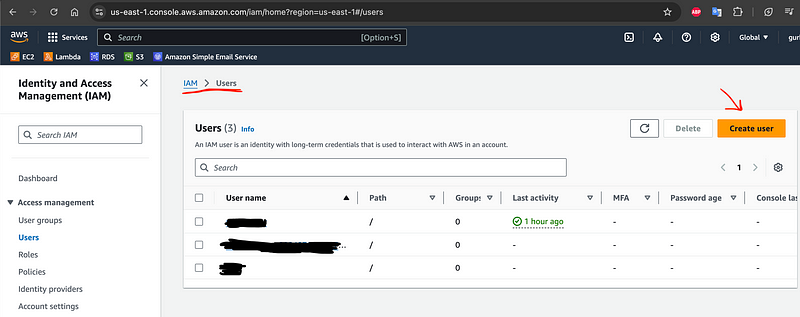
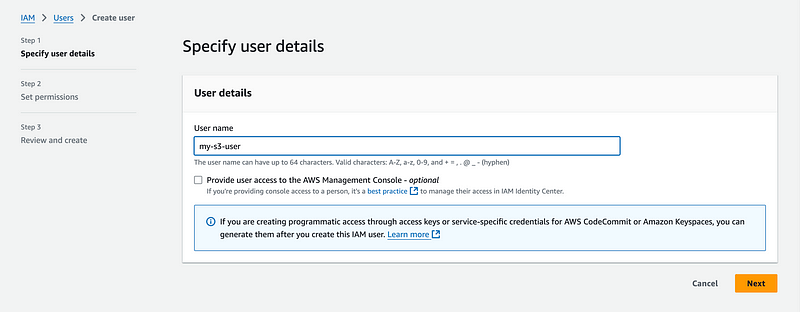
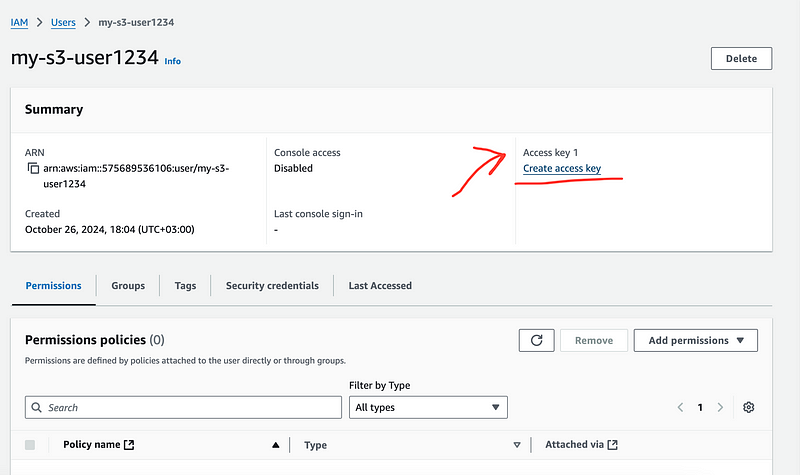
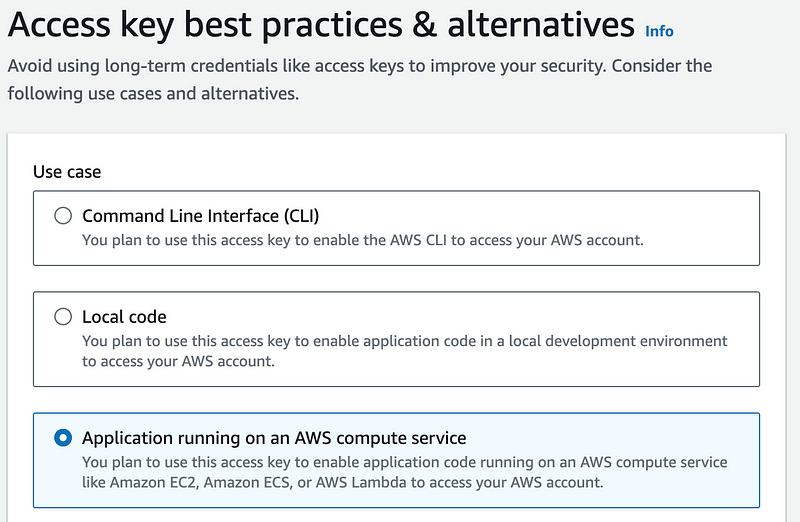
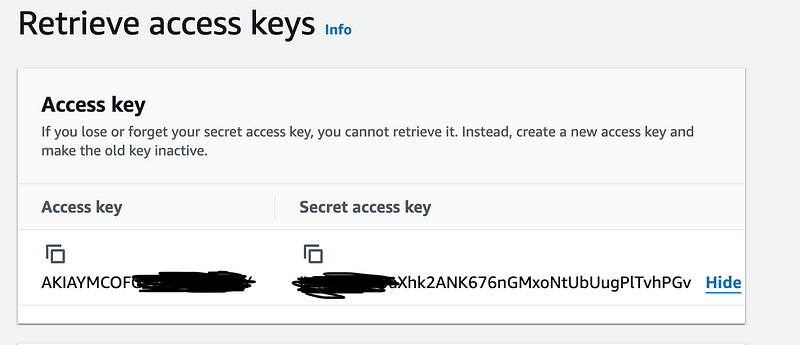
- Create access and secret key
Now we are ready to go with java!
First add dependency below:
<dependency>
    <groupId>software.amazon.awssdk</groupId>
    <artifactId>s3</artifactId>
    <version>2.29.0</version>
</dependency>
Then create variables in application.config file:
#AWS credentials - aws
aws.accessKey=<ACCESS_KEY>
aws.secretKey=<SECRET_KEY>
aws.region=us-east-1 #check it from your bucket
aws.bucket=myawesomeuniquebucket
To connect aws we must create beans in java. Create a class with name “S3Config”. We will add connection bean and presigned url bean to here.
@Configuration
public class S3Config {

    @Value("${aws.accessKey}")
    private String accessKey;

    @Value("${aws.secretKey}")
    private String secretKey;

    @Value("${aws.region}")
    private String region;

    @Bean
    public S3Client s3Client() {
        Region awsRegion = Region.of(region);
        AwsBasicCredentials awsCredentials = AwsBasicCredentials.create(accessKey, secretKey);
        return S3Client.builder()
                .region(awsRegion)
                .credentialsProvider(StaticCredentialsProvider.create(awsCredentials))
                .build();
    }

    @Bean
    public S3Presigner s3Presigner() {
        Region awsRegion = Region.of(region);
        return S3Presigner.builder()
                .region(awsRegion)
                .credentialsProvider(StaticCredentialsProvider.create(
                        AwsBasicCredentials.create(accessKey, secretKey)))
                .build();
    }
}
Now we will create endpoints for making these operations:
- Upload file over java
- Upload private file using s3 presigned url (that can not be accessible directly)
- Upload public file using s3 presigned url (that can be accessible over s3 directly)
- Download files over s3 using presigned url
- Download files over java
Let’s create a controller class:
@RestController
@RequestMapping("/files")
@RequiredArgsConstructor
public class FileController {

    private final FileService fileService;

    /**
     * Generates a presigned GET URL for a file.
     */
    @GetMapping("/{filename}")
    public ResponseEntity<String> getUrl(@PathVariable String filename) {
        String url = fileService.generatePreSignedUrl(filename, SdkHttpMethod.GET, null);
        return ResponseEntity.ok(url);
    }

    /**
     * Generates a presigned PUT URL with specified access type.
     */
    @PostMapping("/pre-signed-url")
    public ResponseEntity<Map<String, Object>> generateUrl(
            @RequestParam(name = "filename", required = false, defaultValue = "") String filename,
            @RequestParam(name = "accessType", required = false, defaultValue = "PRIVATE") AccessType accessType) {
        filename = buildFilename(filename);
        String url = fileService.generatePreSignedUrl(filename, SdkHttpMethod.PUT, accessType);
        return ResponseEntity.ok(Map.of("url", url, "file", filename));
    }

    /**
     * Uploads a file with specified access type over java.
     */
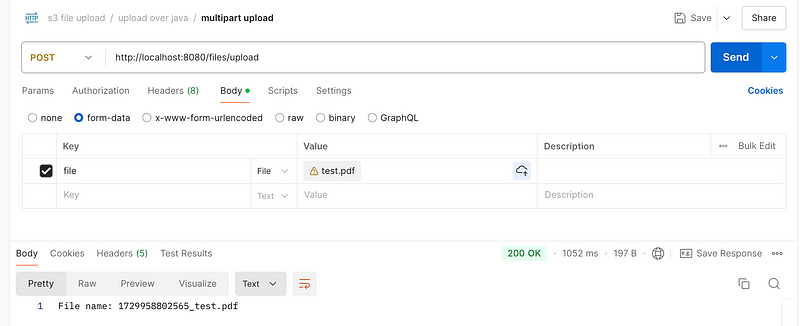
    @PostMapping("/upload")
    public ResponseEntity<String> uploadFile(
            @RequestParam("file") MultipartFile file,
            @RequestParam(name = "accessType", required = false, defaultValue = "PRIVATE") AccessType accessType) throws IOException {
        String fileName = fileService.uploadMultipartFile(file, accessType);
        return ResponseEntity.ok("File name: " + fileName);
    }

    /**
     * Downloads a file over java.
     */
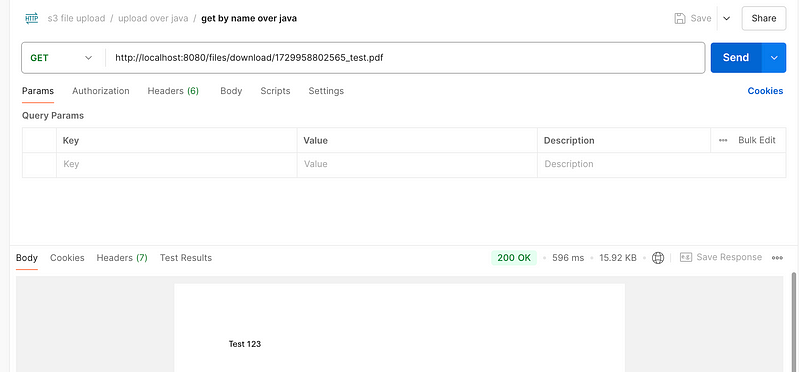
    @GetMapping("/download/{fileName}")
    public ResponseEntity<StreamingResponseBody> downloadFile(@PathVariable("fileName") String fileName) throws Exception {
        return fileService.downloadFileResponse(fileName);
    }

}
Now we will create a service class. We have some utility methods too but i did not put them all here. You can find full code on github repo below.
@Service
@RequiredArgsConstructor
public class FileService {

    @Value("${aws.bucket}")
    private String bucketName;

    private final S3Client s3Client;
    private final S3Presigner s3Presigner;

  /**
     * Generates a presigned URL for GET or PUT operations with specified access type.
     */
    public String generatePreSignedUrl(String filePath, SdkHttpMethod method, AccessType accessType) {
        if (method == SdkHttpMethod.GET) {
            return generateGetPresignedUrl(filePath);
        } else if (method == SdkHttpMethod.PUT) {
            return generatePutPresignedUrl(filePath, accessType);
        } else {
            throw new UnsupportedOperationException("Unsupported HTTP method: " + method);
        }
    }

    /**
     * Generates a presigned GET URL.
     */
    private String generateGetPresignedUrl(String filePath) {
        GetObjectRequest getObjectRequest = GetObjectRequest.builder()
                .bucket(bucketName)
                .key(filePath)
                .build();

        // you can change expiration time here
        GetObjectPresignRequest presignRequest = GetObjectPresignRequest.builder()
                .signatureDuration(Duration.ofMinutes(60))
                .getObjectRequest(getObjectRequest)
                .build();

        PresignedGetObjectRequest presignedRequest = s3Presigner.presignGetObject(presignRequest);
        return presignedRequest.url().toString();
    }

    /**
     * Generates a presigned PUT URL with optional ACL based on AccessType.
     */
    private String generatePutPresignedUrl(String filePath, AccessType accessType) {
        PutObjectRequest.Builder putObjectRequestBuilder = PutObjectRequest.builder()
                .bucket(bucketName)
                .key(filePath);

        if (accessType == AccessType.PUBLIC) {
            putObjectRequestBuilder.acl(ObjectCannedACL.PUBLIC_READ);
        }

        PutObjectRequest putObjectRequest = putObjectRequestBuilder.build();

        PutObjectPresignRequest presignRequest = PutObjectPresignRequest.builder()
                .signatureDuration(Duration.ofMinutes(60))
                .putObjectRequest(putObjectRequest)
                .build();

        PresignedPutObjectRequest presignedRequest = s3Presigner.presignPutObject(presignRequest);
        return presignedRequest.url().toString();
    }


    /**
     * Uploads a MultipartFile to S3 with specified access type.
     */
    public String uploadMultipartFile(MultipartFile file, AccessType accessType) throws IOException {
        String fileName = buildFilename(file.getOriginalFilename());
        try (InputStream inputStream = file.getInputStream()) {
            PutObjectRequest.Builder putObjectRequestBuilder = PutObjectRequest.builder()
                    .bucket(bucketName)
                    .key(fileName);

            if (accessType == AccessType.PUBLIC) {
                putObjectRequestBuilder.acl(ObjectCannedACL.PUBLIC_READ);
            }

            PutObjectRequest putObjectRequest = putObjectRequestBuilder.build();

            s3Client.putObject(putObjectRequest, RequestBody.fromInputStream(inputStream, file.getSize()));
        }
        return fileName;
    }

    /**
     * Downloads a file from S3 and returns an InputStream and ETag.
     */
    public S3ObjectInputStreamWrapper downloadFile(String fileName) {
        GetObjectRequest getObjectRequest = GetObjectRequest.builder()
                .bucket(bucketName)
                .key(fileName)
                .build();

        ResponseInputStream<GetObjectResponse> s3ObjectResponse = s3Client.getObject(getObjectRequest);
        String eTag = s3ObjectResponse.response().eTag();
        return new S3ObjectInputStreamWrapper(s3ObjectResponse, eTag);
    }
Everything looks fine. We can try our services now using postman. I added postman collection to repository. You can directly import it.
Public Upload & Download over S3 using presigned-url
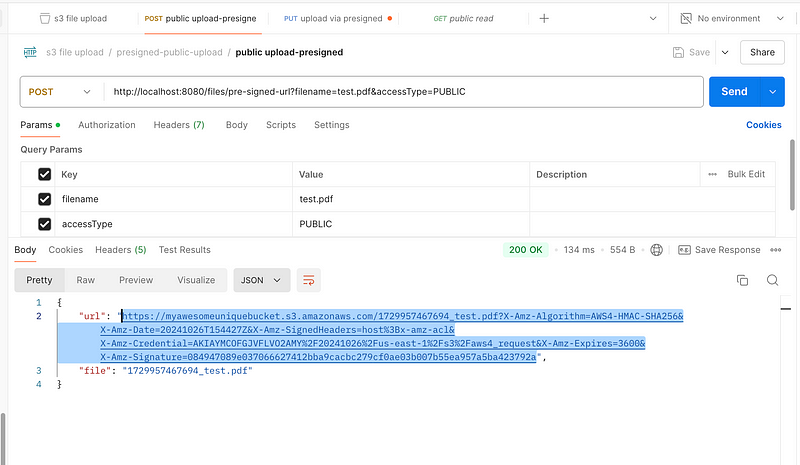
It returns an url to us. Now we will upload our publicly accessible file using this url. Set request type to PUT and we must set X-AMZ-ACL header to public-read for publicly accessible files otherwise you will get signature error:
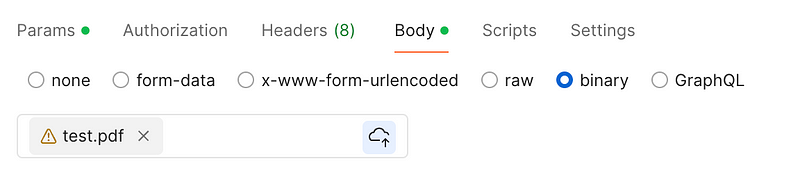
select your file in body -> binary input
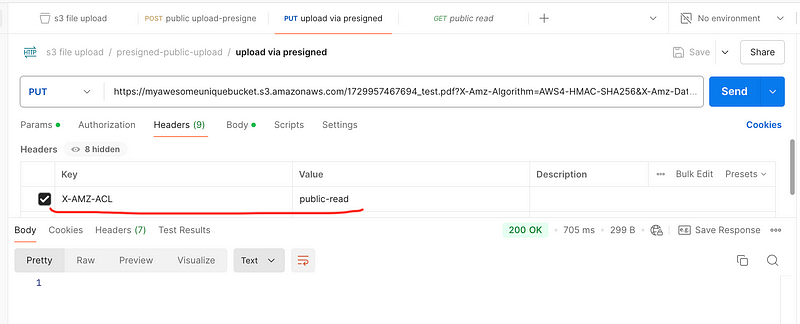
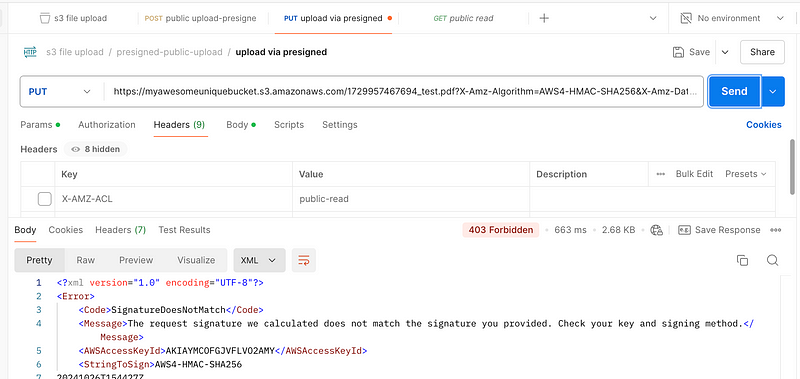
if we don’t set header we will get error
Now file is uploaded to our bucket. Let’s check it:
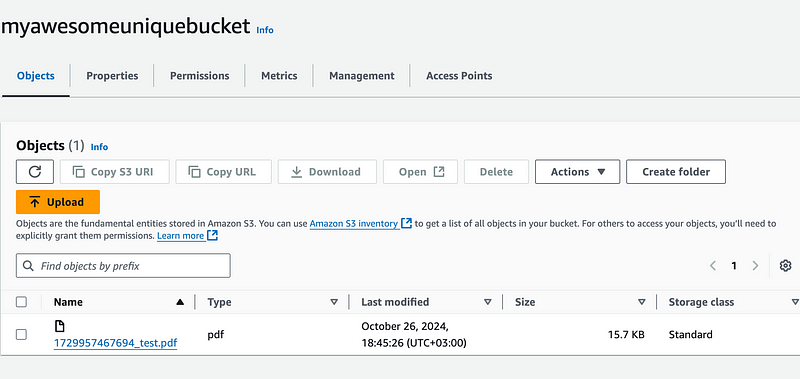
To access our file directly from s3 you can use this url syntax:
https://<bucket_name>.s3.<region>.amazonaws.com/<your_file>
https://myawesomeuniquebucket.s3.us-east-1.amazonaws.com/1729957467694_test.pdf
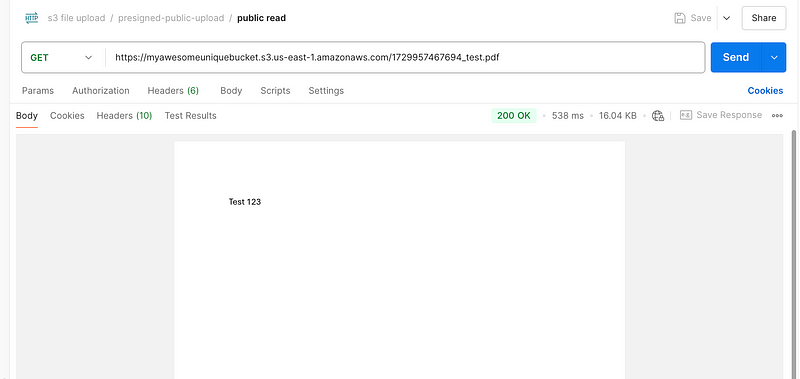
Private Upload Download over S3 using presigned-url
Now let’s try private upload:
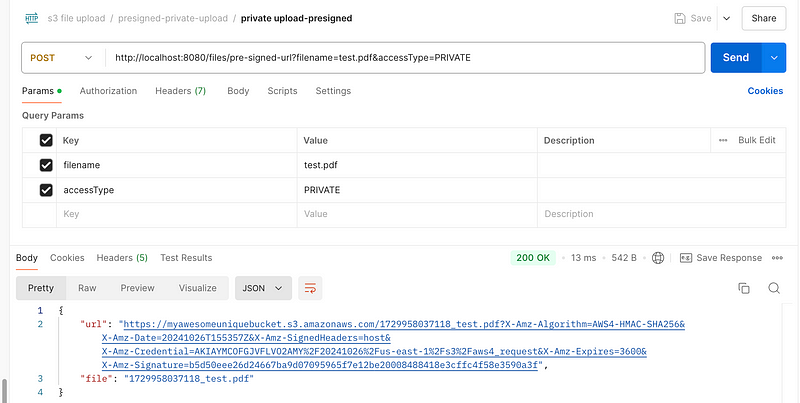
We don’t need to specify any header etc. Just set request type PUT then upload your file:
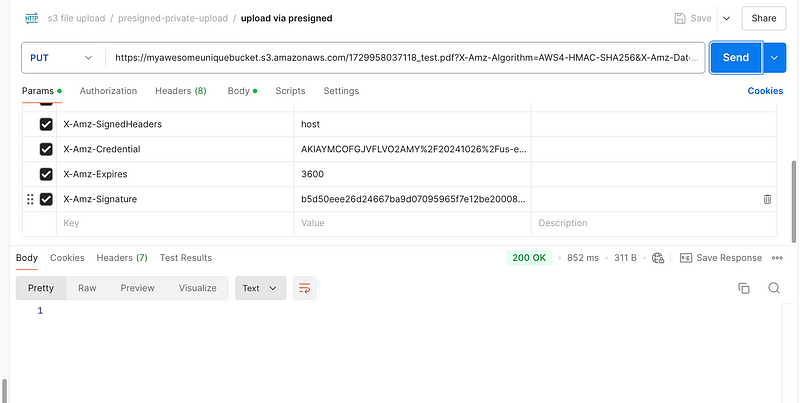
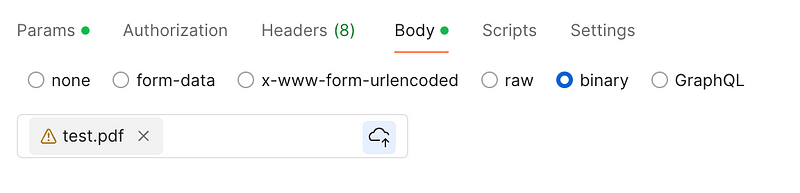
select your file in body -> binary input
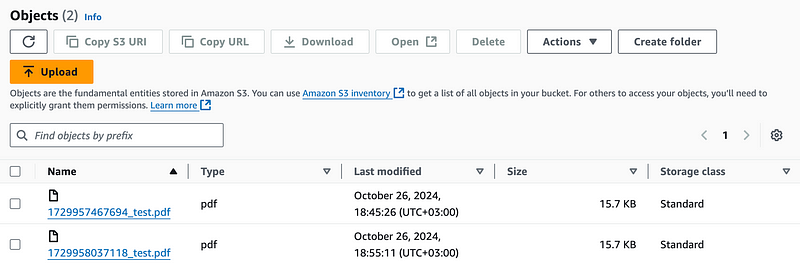
Our file is uploaded to s3 bucket:
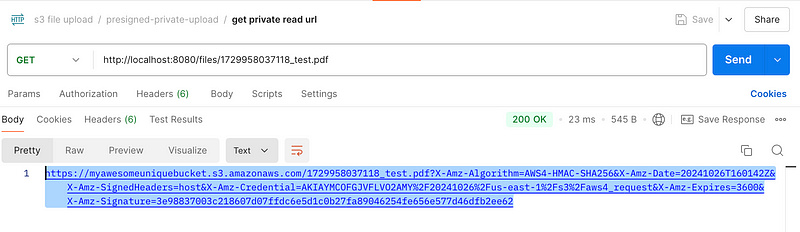
To access file we must send a preseigned-url generate request.
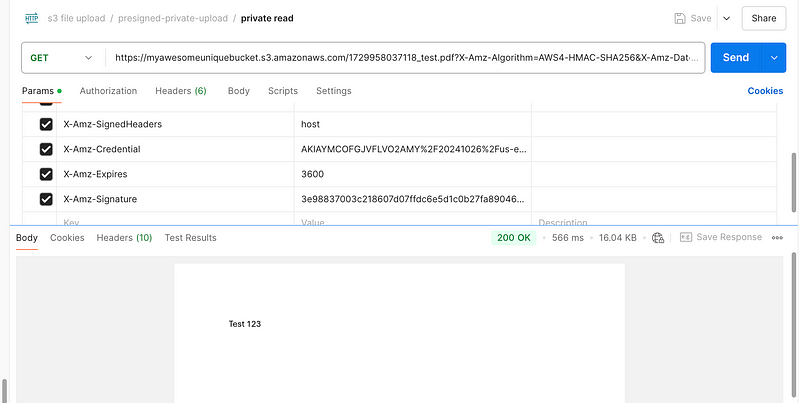
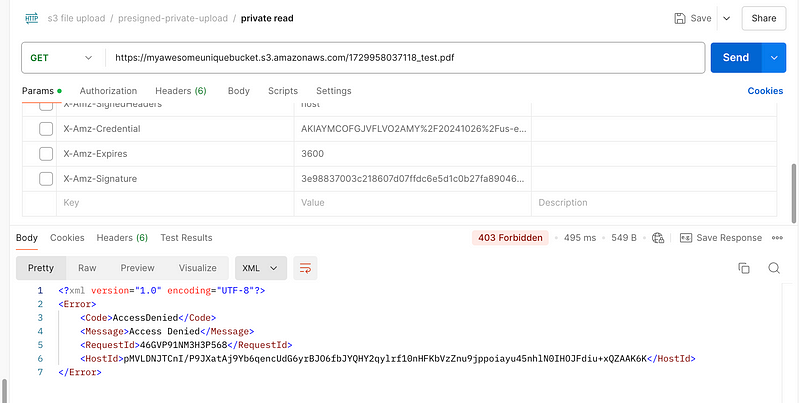
Our file succesfully retrieved. If we try to access file without these params we will get 403 error, because our file is not public and only accesible for given expiry date:
File upload / download over spring boot
Finally we will look at the upload/download over spring boot example. This is not recommended way, because it brings extra load to our backend application.
You can find source codes in here: https://github.com/gurkanucar/java-spring-learning/tree/master/aws-s3-file-service